Can an iPhone record video with the screen off or locked?
Also in: 日本語 · Português (Brasil) · Français
Short answer
No. iOS takes the camera away from any app the moment the phone locks or the app leaves the screen, and Apple's own Camera app is no exception. What you can have is a screen that stays on but shows nothing: brightness at zero and a black view over the app, so the phone keeps recording without lighting up the room.
The question usually comes up in a dark room — a lecture hall, a concert, a rehearsal, a bedroom with someone asleep — where a bright viewfinder held up for an hour is the problem. The short answer is no: an iPhone cannot record with the screen switched off or the phone locked, through any app. The useful answer is what you can do instead, and how close it gets.
What is possible and what is not
| You want | Possible? | Why |
|---|---|---|
| Record with the phone locked | No | Locking takes the camera away from every app |
| Record with the display switched off | No | The display only turns off when the phone locks |
| Keep recording while you use another app | No | Only the app on screen can use the camera |
| Record with a screen that gives off no light | Yes | The app stays open and draws black at zero brightness |
| Make a long session use less battery | Partly | A black screen costs little on OLED; the camera and encoder cost the same |
Why iOS will not record in the background
Video capture on iPhone runs through a capture session that belongs to the app on screen. When that app goes to the background or the phone locks, iOS interrupts the session and hands the camera back; the reason an app is given is literally named video device not available in background. The recording ends there.
iOS does let some kinds of work carry on in the background — playing audio, tracking location, VoIP calls — but there has never been a background mode for the camera, and no setting or permission adds one. That is also why Apple’s Camera app stops when you press the side button mid-recording. An app that says it records with the phone locked is describing something else, or something it does not do.
Three ways to get a dark screen
What you can have is a screen that stays on but shows nothing. How dark it gets depends on how you do it:
| Camera app, brightness down | Camera app + Reduce White Point | An app with a black recording screen | |
|---|---|---|---|
| What the screen shows | The live picture, dimmed | The live picture, dimmer | Black, with a small recording indicator |
| Light in a dark room | Some — a bright stage shows as a bright screen | Less | Close to none on an OLED iPhone |
| Set up | Control Center | Settings, then Control Center | One button |
| Afterwards | Turn brightness back up | Also turn Reduce White Point off | The app puts your brightness back |
1. The Camera app with brightness at the bottom
Start recording, swipe down from the top-right corner to open Control Center — the recording keeps going — and drag brightness all the way down. The catch is that the viewfinder still shows what the camera sees, so pointing at a lit stage puts a lit stage on your screen, facing you and everyone behind you.
2. Add Reduce White Point
Settings › Accessibility › Display & Text Size › Reduce White Point dims bright colors further than the brightness slider can go (Apple’s description). Turn it on, push its slider high, then record as above. It is darker, but still a picture rather than black, and the setting stays on after you finish — every app will look dim until you turn it off again.
3. An app that records behind a black screen
An app that stays open can set brightness to zero and cover its own interface with black while it keeps recording. The display is still on, but on the OLED screen of recent iPhones black pixels are close to off, so it gives off almost no light. The rules from the first section still apply: the app has to stay in front, and the phone must not lock.
The indicators stay on, whatever the app
Two things show that the camera is running, and neither can be removed:
- The green dot at the top of the screen is drawn by iOS whenever an app uses the camera. No app can hide it.
- The app’s own indicator. App Store Review Guideline 2.5.14 requires “a clear visual and/or audible indication” while an app records. A compliant black recording screen therefore still shows a dot, a label or a timer, and does not let you switch it off.
How NoLight does it
NoLight is the app I built for the third option. From its source code:
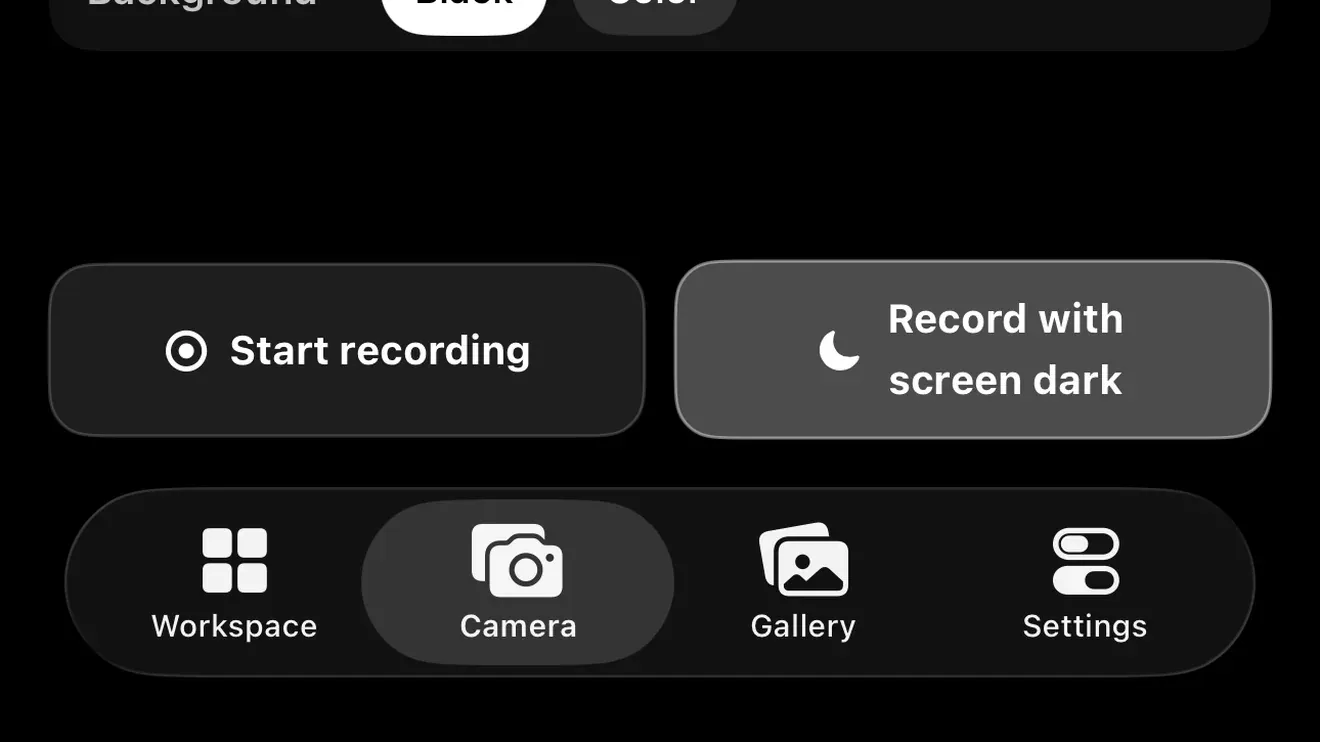
- On the Camera tab, tap Record with screen dark, then Start with Screen Dark. Recording starts and the screen turns black at zero brightness; with Pro you can pick a dark color instead. A red dot and REC stay on screen the whole time and cannot be turned off.
- Double-tap brings the screen back. If a double-tap could happen by accident, Settings › Black Screen changes it to a triple tap or press and hold.
- Your brightness always comes back. The level you had is saved the moment the screen dims and restored when you return — and again at the next launch if the app was closed while dark, so a crash cannot leave the phone stuck dim.
- The phone does not auto-lock while it records, and the video is written in five-second pieces, so if something does end the recording, everything up to the last few seconds is kept.
- Free includes 10 minutes of dark screen in total. When that runs out the screen comes back on and the recording keeps going.
Before a long session
- Charge the phone, or plug in a power bank for anything over an hour.
- Check free space. Long video takes several gigabytes an hour; the storage calculator gives the figure for your length and resolution.
- Silence calls and notifications with a Focus or Airplane Mode, so nothing pulls another app to the front.
- Use a stand, and keep your hand off the side button.
If a recording still stops early, Why does my iPhone stop recording video? goes through the seven usual causes.
Ask before you record people
Whether you may record someone without asking depends on where you are — some places require only your own consent, others require everyone’s — and venues set their own rules on top. A dark screen changes how much light the phone gives off, not what you are allowed to record.
Short answers
Can an iPhone record video while it is locked? No. Locking takes the camera away from every app, Apple’s Camera app included.
Can it keep recording if I switch to another app? No. Only the app on screen can use the camera.
Can I record with a black screen? Yes, with an app that stays open and turns its own screen black, recording indicator still showing.
Does a black screen save battery? On OLED iPhones, the display uses less; the camera and the video encoder use what they always use.